Resources
Caster Guide
Everything you need to stream and cast a Beer League match — OBS, audio, overlays, and on-air flow.
Twitch Stream Setup
Message youjustgotslapt and/or dunivaun on Discord with an email address linked to a Twitch account. We’ll have an email generated and sent to your email that will contain your unique stream key attached to the Beer League channel. Keep the email handy for step 4.
- Download the JSON and .zip file from this Google Drive folder. You can save both files wherever you want. Once they’re saved, you will need to extract the entire “OBS - Streaming Assets - Season 8” folder to your root drive (usually
C:/) from the .zip file. - Download OBS and install it to your machine.
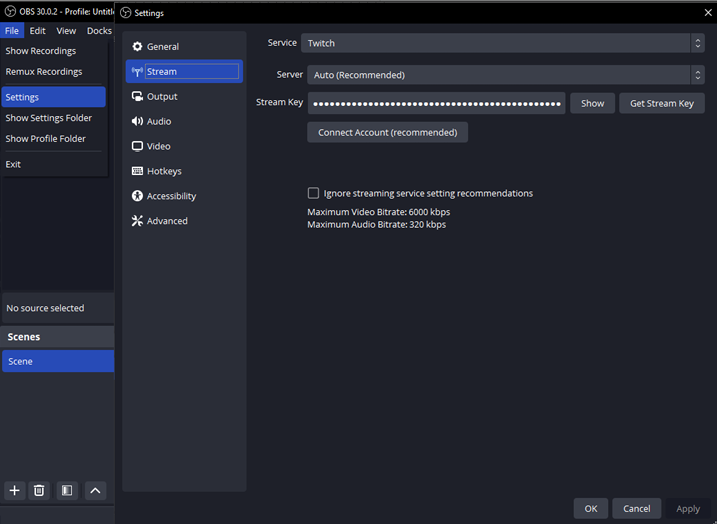
- Load OBS and navigate to File → Settings → Stream. Select “Twitch” as the service, leave the server on auto, and input your Stream Key from the email.
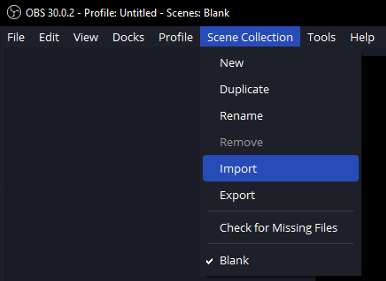
- Navigate to Scene Collection → Import.
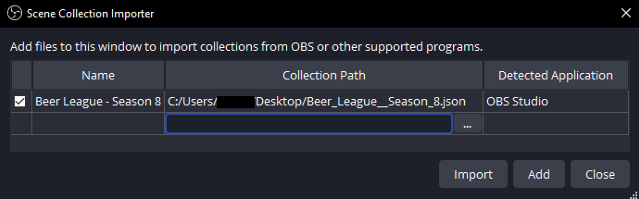
- Click Add and navigate to where you saved the JSON file earlier; select it and then click Import.
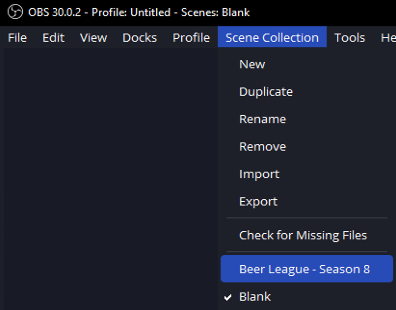
The other stream assets should automatically associate with these scenes if you saved them to your root drive (C:/). - Navigate back to Scene Collection and select “Beer League - Season 8”.
Scene-Specific Details
- Starting Soon – Match of the Day text box
- Intro – Player of the Week text box; ensure the right number of cams is set based on how many people are casting.
- Cams are pre-cropped based on the amount of people (e.g., 2-Person Stream Cam). Make sure ONLY the correct number of people are in the Discord call.
- The person running the stream from OBS does not need to stream their cam in Discord. Select your webcam from the Device list after double-clicking the Cam source.
- Make sure you have the correct Intro Graphic selected based on how many people are casting.
- In-Game
- Blue and Red Side Team Name text boxes – move team names between games (updates automatically if changed in Draft overlay).
- Blue and Red Series Score text boxes – update between games (updates automatically if changed in Draft overlay).
- Blue and Red Side Record text boxes – adjust between games.
- Draft
- Blue and Red Side Team Name and Series Score text boxes sync across scenes.
- Ensure the correct Draft Overlay and cam layout are selected for the number of casters.
- Keys2Victory
- Don’t have browser bookmarks visible or they won’t fit perfectly.
- Double-click Display Capture and choose the screen you want displayed.
Extras – DMCA-Approved Music
When doing the intro/outro scene or player intros you might want music. Use these songs made for Beer League and cleared for Twitch:
- Song 1: https://youtu.be/_EEpngIz0no
- Song 2: https://youtu.be/BezMi-JfyoE
- Song 3: https://youtu.be/WUL6zm9tNh8